


Music Volume EQ - Equalizer
4.535.73K Reviews
App Specs
- Version
- 8.5
- Updated On
- License
- Free
- Downloads
- 50,000,000+
- Developer
- Dub Studio Productions
- Categories
- Music & Audio
- Platform
- Android
Screenshots
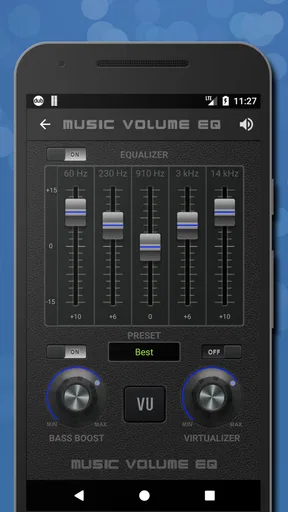
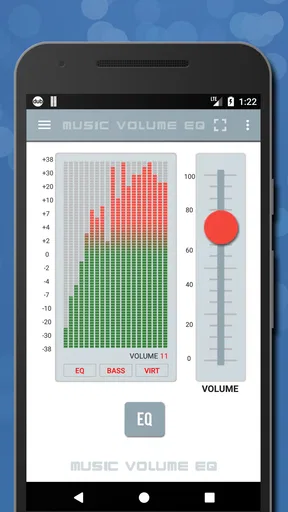
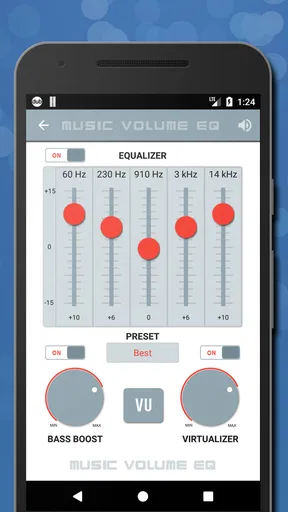
 Analysis by AppCompare
Music Volume EQ - Equalizer is the kind of Android app I reach for when my phone sounds almost right but not quite. It gives me a more direct way to shape music, podcasts, videos, and other audio than the small sound controls built into many phones. In my experience, its appeal is not that it magically turns a basic speaker into a premium one; it is that it lets me correct an irritating sound balance quickly and without needing audio-engineering knowledge.
Developed by Dub Studio Productions, this free Music & Audio app has been around since January 30, 2012. It is currently at version 8.5, supports Android 5.0 and newer, and carries a Teen content rating. Its average score is 4.5 from around 663 thousand ratings, while the app has passed 50 million installs. Those figures suggest that it has become a familiar tool for people who want more control over everyday listening rather than a specialist recording application.
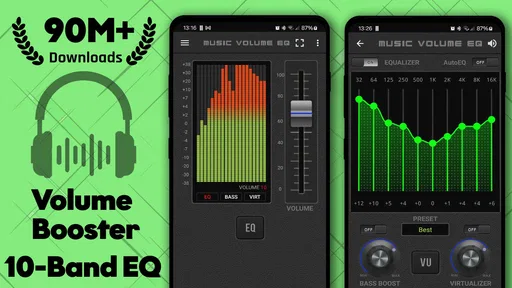
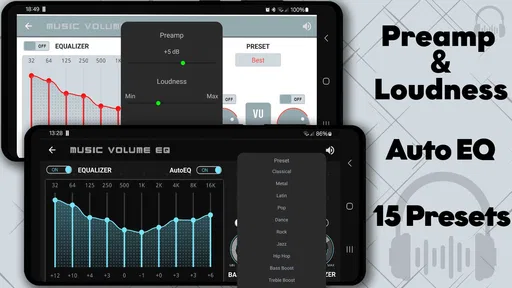
The central idea is straightforward: a ten-band equalizer, bass boost, and volume control in one place. I like that combination because it covers the adjustments most people actually want. You can make speech easier to follow, soften harsh treble, add weight to thin music, or reduce a boomy low end. The important question is whether those controls remain comfortable and understandable for different users and situations, so that is where my review focuses.
How readable and manageable the controls feel
I find that readable controls matter most when I need to make a quick adjustment without turning listening into a task. In this section, I’d look at how the sliders and labels affect confidence, especially on a smaller screen, and why a simple one-change-at-a-time routine can help. That practical interaction leads into a broader question: how comfortably different people can use those controls.
A compact layout with useful audio information
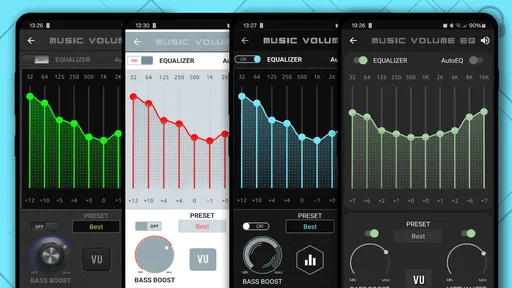
The first thing I noticed is that the app is built around visible audio controls rather than a long settings journey. That matters when I am listening and want to make a change immediately. A ten-band equalizer can look intimidating at first, but the sliders provide a practical visual map: the left side represents lower tones, the middle covers much of the body of voices and instruments, and the right side affects higher detail.
For someone new to equalization, the best approach is to move one or two sliders only a little, listen, and then decide whether the change helps. Large adjustments often make music sound unnatural or make a phone speaker rattle. I found the interface more approachable when I treated it as a correction tool instead of trying to create an extreme “club” sound.
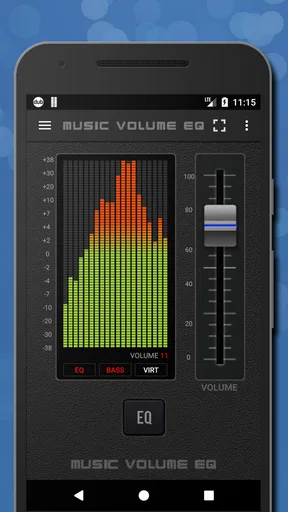
The bass boost and volume controls are easier to understand than the full equalizer, but they also require restraint. Raising bass and overall volume together can make a small speaker sound compressed or distorted. A useful routine is to set the volume first, adjust the equalizer second, and use bass boost last. This order makes it easier to identify which control created a problem.
Worth Reading Before You Choose

EA SPORTS FC Mobile 26 Is a Bigger Football Game, but It Takes Time

Flipboard Shows What News Apps Must Do Beyond the Feed

Switching to Android Auto Means Rethinking Your Driving Routine

Google Calendar Makes a Crowded Week Easier to Manage

Ludo King Makes the Most of the Minutes Between Plans

Baby Panda World Brings Quick Play to Modern Phones, but Its Game Library Feels Busy
Why the visual design matters for different users
Equalizer apps can be difficult when labels, sliders, and active states are too subtle. Here, the practical challenge is not the concept of the controls but the precision required to place a finger on a narrow slider. I would have preferred a more forgiving interaction area for people with limited dexterity or shaky hands. Even when the screen is readable, fine adjustment can take several attempts.
I also recommend making changes while paused or while playing a familiar track. That reduces the need to remember what the previous setting sounded like. If you are adjusting a podcast, use a speaker with a steady voice and change only the middle bands. If you are tuning music, choose a song you know well and avoid judging the result from a single dramatic moment.
The most accessible habit is to make small, reversible changes rather than chase a perfect curve. That advice is especially useful for anyone who finds multiple sliders visually tiring. The app offers control, but it does not remove the need to listen carefully and compare before and after.
Learning the equalizer without audio jargon
I would not recommend starting by searching for a complicated “correct” setting. The same curve will sound different through phone speakers, wired headphones, wireless headphones, and a car system. Instead, I use a simple three-step method: reduce an unpleasant area, check speech or vocals, and then restore any detail that became dull.
For example, if spoken audio sounds muddy, I first lower the bass slightly rather than immediately raising the treble. If music feels sharp, I reduce the highest bands gently. If headphones sound thin, I add a modest amount of low-end support and check whether vocals remain clear. This workflow is easier to understand than memorizing frequency names, and it avoids the common mistake of boosting everything.
Motor, hearing, and sensory considerations
For me, sound adjustment is useful only when it supports comfort rather than encouraging louder or more intense listening. I’d consider how fine slider movement, changing tonal balance, and sensory sensitivity can affect the experience, while keeping in mind that an equalizer is not hearing care. Those personal differences become clearer when the app is used beyond a quiet test session.
Useful control for people who hear different balances
One genuine strength of Music Volume EQ is that it can help compensate for the way different headphones, speakers, and listening environments present sound. A person who finds high frequencies tiring may prefer a softer top end. Someone who struggles to follow low-volume speech may benefit from reducing bass that masks voices and adding a little presence. These are not medical corrections, and I would never treat the app as a substitute for hearing support, but the ability to shape sound can make ordinary listening more comfortable.
The ten-band layout is particularly helpful when a broad bass or treble switch is too blunt. A bass boost affects a general region, while the equalizer lets me make a narrower adjustment. That distinction matters when I want more vocal clarity without making cymbals painfully bright, or when I want fuller music without making dialogue indistinct.
There is also a sensory trade-off. Strong boosts can make audio feel louder, denser, and more tiring even when the volume control has not changed. I advise starting from a flat or nearly flat setting and increasing only the area that solves the problem. If a song sounds impressive for a minute but becomes uncomfortable during a longer session, the setting is probably too aggressive.
Fine motor effort and practical workarounds
Dragging several sliders accurately can be frustrating for users with tremors, reduced finger control, or difficulty maintaining a steady touch. My workaround is to change one slider at a time and stop as soon as the sound improves. I also avoid making adjustments while walking, riding in a vehicle, or holding the phone with one hand. Those situations turn a manageable interface into a fiddly one.
People who use larger text or display scaling on Android should check how the controls remain visible on their particular device. I would not assume that every screen size presents the same amount of room. A layout that feels comfortable on a large phone may feel cramped on a smaller one. The app is most pleasant when I can see the labels clearly and have enough space to touch the slider without hitting a neighboring control.
For users who rely on hearing aids, bone-conduction headphones, or other listening equipment, the result will depend heavily on the equipment and the phone. The app can alter the audio signal, but it cannot guarantee that every output path will respond identically. I would test changes at a safe listening level and keep a neutral setting available so returning to a comfortable baseline is easy.
Volume control is not the same as clarity
A common mistake is to use the volume control to solve a clarity problem. Louder does not always mean easier to understand. In a noisy room, increasing volume may help briefly, but it can also increase fatigue. Lowering competing bass and making a careful midrange adjustment is often more useful for speech than simply turning everything up.
This is one reason I see the app as more than a loudness tool. Its value is strongest when I use the equalizer to shape what I need to hear, then keep the final volume moderate. The approach is slower than tapping a volume button, but it produces a more controlled result.
How it works in everyday situations
I judge an audio tool by whether it fits naturally into routines like listening to a podcast on the way somewhere or switching from headphones to a phone speaker at home. Here, I’d focus on choosing a modest adjustment for the current situation rather than expecting one setting to suit every source. That everyday flexibility also raises the question of when the controls remain accessible in less convenient settings.
A realistic podcast and commute routine
Imagine listening to a podcast on a bus. The engine creates a constant low rumble, while nearby conversations compete with the speaker’s voice. My first move would be to reduce some low-end energy, then make a small adjustment around the vocal range. I would avoid a dramatic treble boost because that can make consonants sharper without actually making the speaker easier to follow.
Once I reach a quieter place, I would return toward a neutral setting. This is an important practical point: a setting that helps in one environment may sound thin or harsh at home. I would not leave a heavy commute profile active for every album, because the same reduction that clears speech can remove warmth from music.
Making inexpensive headphones more comfortable
Music Volume EQ is also useful when headphones have an obvious character. Some inexpensive pairs sound boomy, while others emphasize bright details. I can use the ten bands to reduce the most distracting area instead of replacing the headphones immediately. That does not turn them into studio monitors, but it may make them less tiring for casual listening.
The trade-off is that correction can expose other weaknesses. If I cut too much bass, the headphones may sound empty. If I boost detail to recover clarity, hiss or harshness may become more noticeable. I prefer gentle correction and realistic expectations. This app is a tuning layer, not a repair shop for damaged hardware.
Using it with music, video, and spoken audio
For music, I judge the result across several styles rather than one favorite track. A curve that adds excitement to electronic music may make acoustic instruments sound swollen. For video, I usually prioritize intelligible dialogue over cinematic impact. For audiobooks and spoken programs, I make smaller changes because voices can become tiring quickly when the upper bands are pushed too far.
Another useful workflow is to make a setting for a specific output device rather than pretending one profile suits everything. Phone speakers, headphones, and a car stereo have different limitations. I would keep notes in my own words, such as “less rumble for podcasts” or “slightly softer highs for headphones,” instead of relying on technical labels alone. That makes the app easier to use when I return to it after some time.
Where the usual alternatives may be better
Many phones already include a basic equalizer or sound-effects panel. If you only want one simple bass switch, the built-in option may be less distracting and may integrate more naturally with the phone’s audio system. A dedicated music player can also be the better choice when you want controls tied specifically to your local music library rather than a broader system-level adjustment.
On the other hand, Music Volume EQ makes more sense when you want a focused tool with a ten-band layout, bass boost, and volume control in the same place. It is more flexible than a single preset, but less specialized than professional audio software. I would choose it for everyday listening experiments, not for mixing tracks, mastering recordings, or measuring equipment objectively.
Situational access and remaining friction
A useful adjustment should be possible when the phone is easy to hold, the screen is clear, and there is time to listen and compare. I’d also account for moments when those conditions are missing, since changing several sliders while moving can add friction and make results hard to judge. With those limits in view, the next section can weigh whether the app earns a continuing place in a listening routine.
Good fit for quick personal adjustments
The app suits people who listen in changing environments and want to respond without opening a full audio workstation. Students trying to hear lectures more clearly, commuters managing background rumble, and headphone users correcting an overly bright sound can all find a sensible use for it. It is also approachable for someone who knows that their audio feels wrong but does not want to learn a large desktop equalizer.
Because it is free to install, trying it does not require an upfront purchase. Optional in-app purchases range from $3.99 to $29.99 per item, so I would pay attention to any purchase screen and decide whether the free experience already covers my needs. For a basic listener, the main value is the ability to experiment; spending more only makes sense if the available paid elements solve a specific problem.
The app’s Teen rating is worth keeping in mind for families, although the practical concern here is less about music adjustment and more about how a younger user handles loudness. I would teach anyone using it that bass boost and volume increases should not be treated as a competition. A comfortable, sustainable listening level matters more than an impressive first impression.
Barriers that can affect confidence
The biggest barrier is feedback. Audio changes are subjective, and the app cannot tell me whether a setting is genuinely clearer or merely louder. That means users with limited hearing, sensory sensitivity, or difficulty comparing sounds may need more time and a quiet environment. A second barrier is the possibility of device-specific behavior: different phones and output devices may react differently to the same adjustment.
There is also a risk of overcorrection. New users may raise bass, treble, and volume together because each change sounds exciting in isolation. The result can be distortion, fatigue, or a sound that works only for one song. I consider this a usability issue as much as an audio issue. The app gives me many controls, but it does not automatically protect me from poor combinations.
Users who need a guaranteed, highly predictable experience may prefer a simpler built-in sound control. People who require advanced accessibility customization should also judge the app on their own device rather than assuming that a visual slider interface will meet every need. Its controls are practical, but they are not a replacement for specialized assistive technology or professional hearing advice.
What I would check before keeping it installed
I would test three things during the first session. First, I would see whether the controls are easy to read and touch on my phone. Second, I would compare speech and music at a moderate volume, because a setting that helps one may harm the other. Third, I would switch between different listening outputs and confirm that my preferred adjustment still makes sense.
I would also spend a day using a nearly neutral setting after experimenting. That helps reveal whether the app is solving a real problem or simply making everything more dramatic. If I still prefer the adjusted sound across familiar content, it has earned a place in my routine. If I keep changing sliders without finding comfort, the phone’s simpler controls may be the better answer.
My inclusive verdict on Music Volume EQ
Music Volume EQ - Equalizer is a useful, focused option for Android listeners who want more control than a basic volume button or a single sound preset provides. Its ten-band equalizer gives me room to make targeted corrections, while bass boost and volume control cover faster adjustments. I especially value it for improving the balance of speech and for taking the edge off headphones that are too boomy or too bright.
Its inclusive value comes from flexibility rather than from claiming to solve every access need. A listener can shape sound around a noisy commute, a particular headphone, or personal sensitivity to certain tones. That flexibility can support different hearing preferences and contexts, but it also asks the user to listen carefully and make responsible changes.
I would recommend it to curious listeners, podcast fans, commuters, and anyone frustrated by a phone’s limited audio controls. I would skip it if I only want a single automatic preset, if slider-based adjustments are difficult on my device, or if I need professional audio tools with more specialized control. In those cases, a built-in equalizer, a music player with device-specific profiles, or dedicated assistive equipment may be a better fit.
Overall, Dub Studio Productions has made a practical everyday utility rather than an all-purpose audio laboratory. The free entry point makes experimentation easy, and the app’s long presence in the category is reflected in its broad adoption. My advice is to use it conservatively: start near neutral, change one area at a time, compare familiar speech and music, and keep the volume comfortable. Used that way, it can make listening feel more personal without turning a simple adjustment into unnecessary work.
Pros
- Five-band equalizer offers useful control over different frequency ranges.
- Bass boost and virtualizer effects can add depth to music and videos.
- Volume controls make it easy to adjust audio without leaving the app.
- Works with many music players and streaming apps on compatible devices.
- Simple interface is quick to understand for casual users.
Cons
- Some features may require the paid version or additional purchases.
- Audio effects can vary significantly between headphones and devices.
- Aggressive bass settings may cause distortion at higher volume levels.
- The app may not work consistently with every streaming service.
- Higher volume levels can risk hearing damage if used irresponsibly.
FAQs for Music Volume EQ - Equalizer
What is Music Volume EQ - Equalizer used for?
Music Volume EQ - Equalizer is designed to improve and customize the sound produced by your Android device. After opening the app, you can adjust frequency bands, bass strength, virtualizer effects, and overall volume to create a sound profile that better suits music, videos, games, podcasts, or headphones. It is especially useful when your phone’s built-in audio controls feel too limited.
Does Music Volume EQ - Equalizer work with every music or audio app?
Compatibility can depend on the Android version, device manufacturer, audio driver, and the player being used. In my testing, the equalizer worked most consistently with common music and media applications, particularly when audio was playing in the background. Some streaming services, Bluetooth devices, or apps with their own audio processing may limit or ignore external equalizer adjustments, so results can vary between devices.
Can I use Music Volume EQ - Equalizer with Bluetooth headphones or speakers?
The app can work with many Bluetooth headphones, earbuds, and speakers, but performance is not guaranteed for every accessory. Bluetooth devices may apply their own sound processing, and some phones handle wireless audio differently from wired headphones. If the effect seems weak or inactive, reconnecting the device, restarting playback, or checking the accessory’s companion app may help. Audio quality also depends on the Bluetooth codec and hardware.
Is Music Volume EQ - Equalizer free to download and use?
Music Volume EQ - Equalizer is generally available as a free download, although the exact features, advertising, and optional purchases may depend on the version installed from the app store. Basic equalizer controls are typically accessible without payment, while some advanced settings or a more ad-free experience may require an upgrade. Check the current store listing before downloading because pricing and included features can change.
Can using the equalizer damage my phone or headphones?
The application itself should not damage your phone when used normally, but extreme audio settings can create distortion and may be uncomfortable or harmful to your hearing. Increasing bass, virtualizer effects, or overall volume too aggressively can also place unnecessary strain on small speakers or headphones. It is best to make gradual adjustments, keep listening levels moderate, and reduce the volume immediately if you hear clipping or distortion.


